Zendesk 연동 가이드
Vela를 Zendesk에 연결하여 답변 초안을 자동 생성하고 티켓 우선순위에 따라 지원 업무를 처리하세요. 팀원들이 우선순위가 높은 핵심 문제에만 전념하도록 도와줍니다.
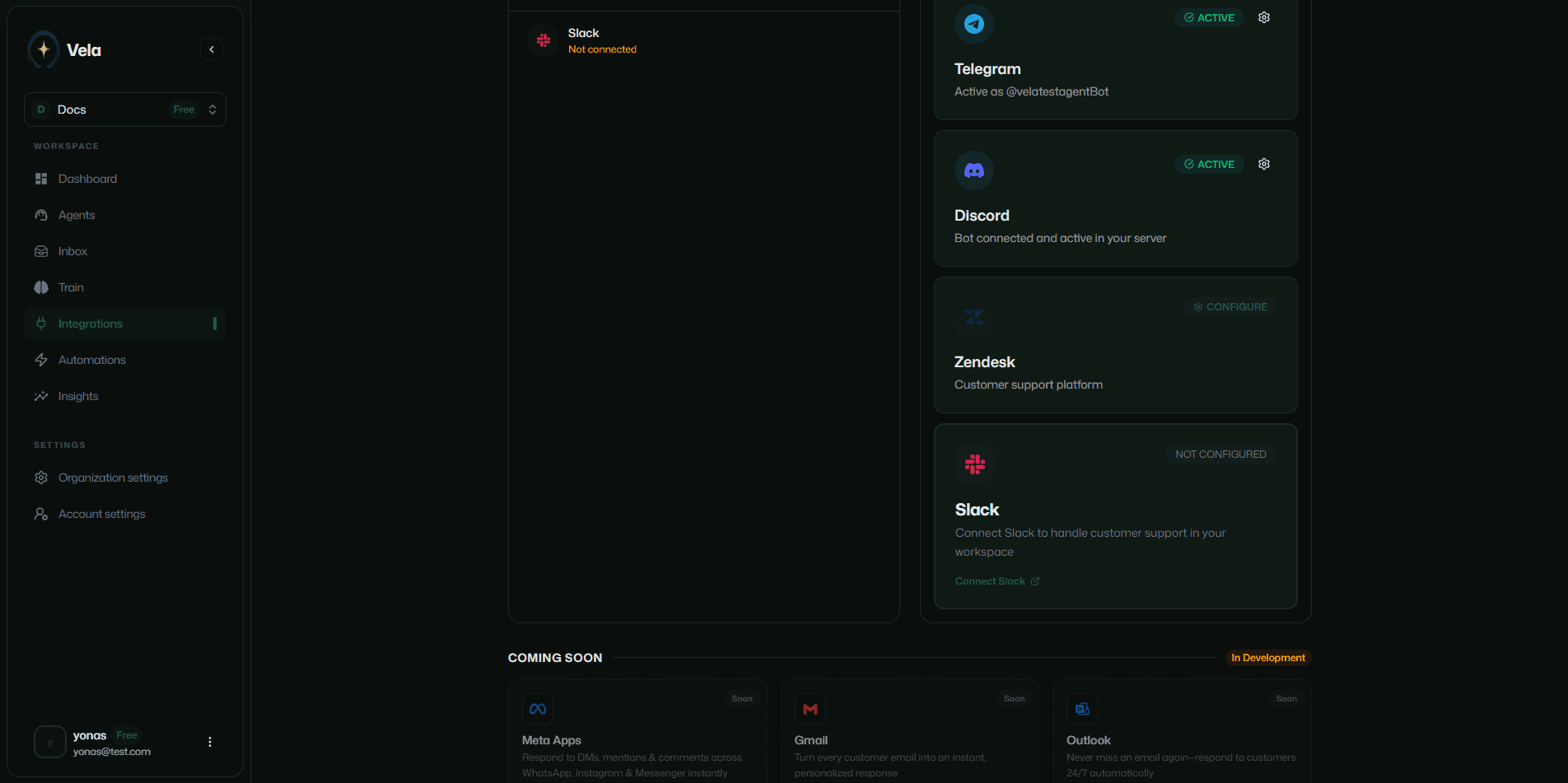
사이드바의 채널 연동 섹션에 있는 Zendesk 설정 버튼을 클릭합니다.
연동 이름 설정
이번 연동에 사용할 별칭을 지정해 줍니다. 예: "Zendesk 티켓 자동 해결사"
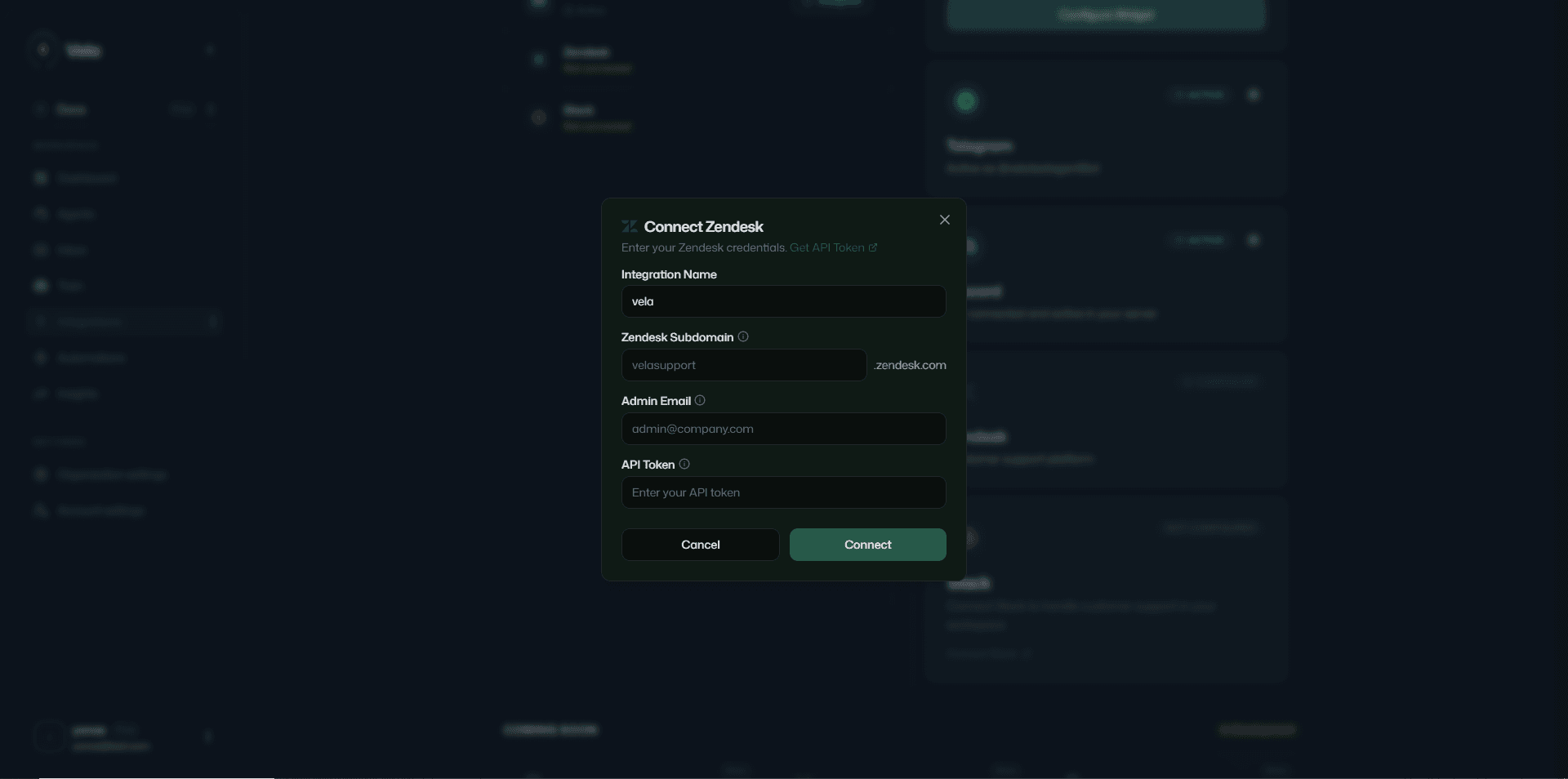
Zendesk 서브도메인 주소 입력
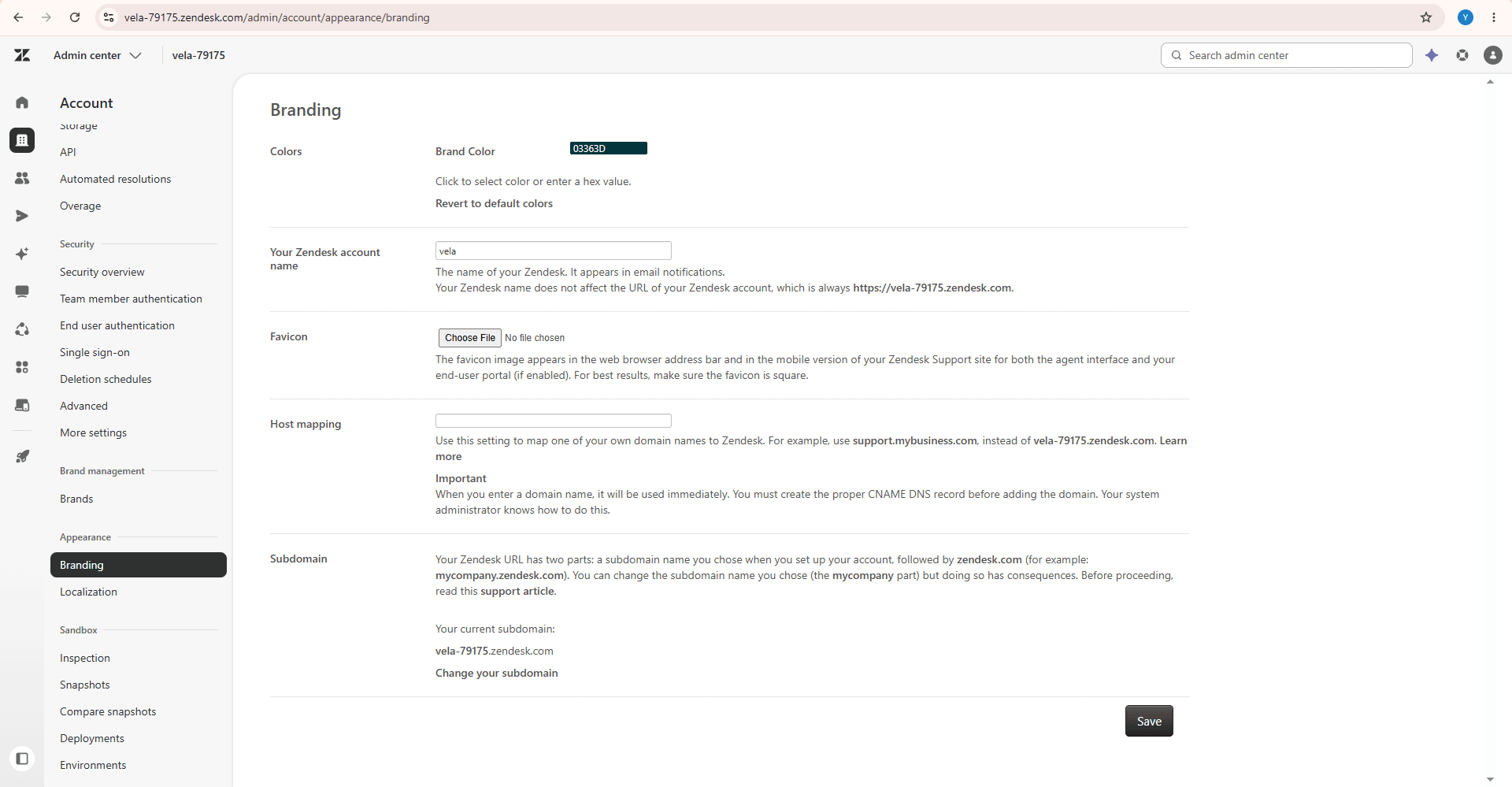
Zendesk 서비스 계정에 로그인하세요. 서브도메인은 인터넷 주소창에 나타나는 URL 정보 중 .zendesk.com의 앞자리에 표기되는 문자열입니다. 예를 들어 서비스 접속 주소가 https://yourcompany.zendesk.com 이라면, 사용자의 서브도메인은 yourcompany가 됩니다.
혹은 관리자 센터 > 계정 > 브랜드 로고 설정으로 들어가 우측 하단에서 도메인 주소를 직접 찾으실 수도 있습니다.
Zendesk 관리자 이메일 입력
API 토큰을 발급받아 소유하고 있는 Zendesk 관리자 계정 혹은 대리점 계정의 이메일 주소입니다.
Zendesk API 토큰 입력
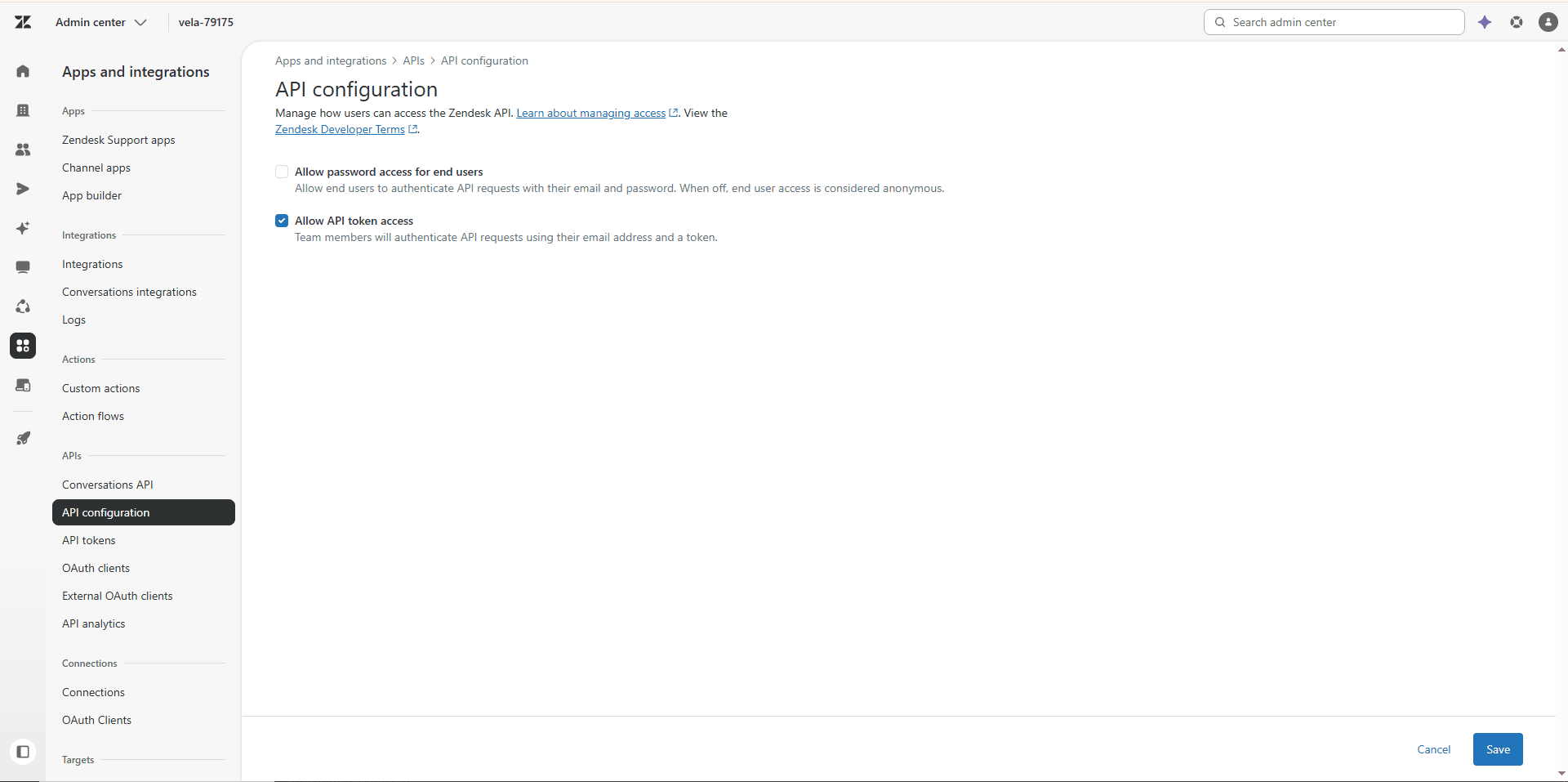
Zendesk 관리자 센터 > 앱 및 연동 > API 설정 탭으로 들어갑니다. Zendesk 개발자 약관 동의 체크박스에 체크한 뒤, API 토큰 접근 권한 허용 (Allow API token access) 옵션을 켜고 저장을 누릅니다.
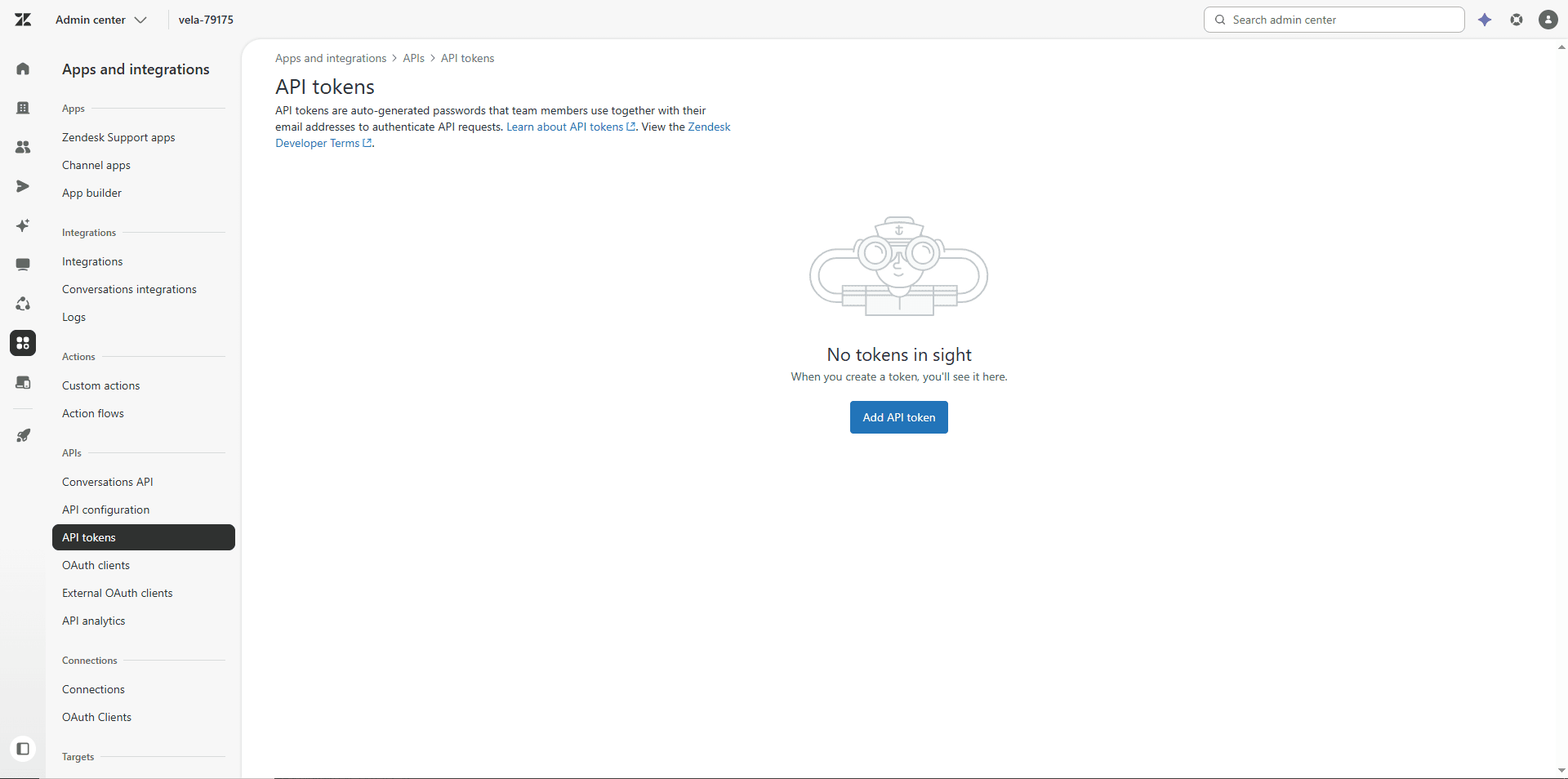
왼쪽 메뉴에서 API 토큰을 클릭하고 API 토큰 추가 (Add API token) 버튼을 누릅니다.
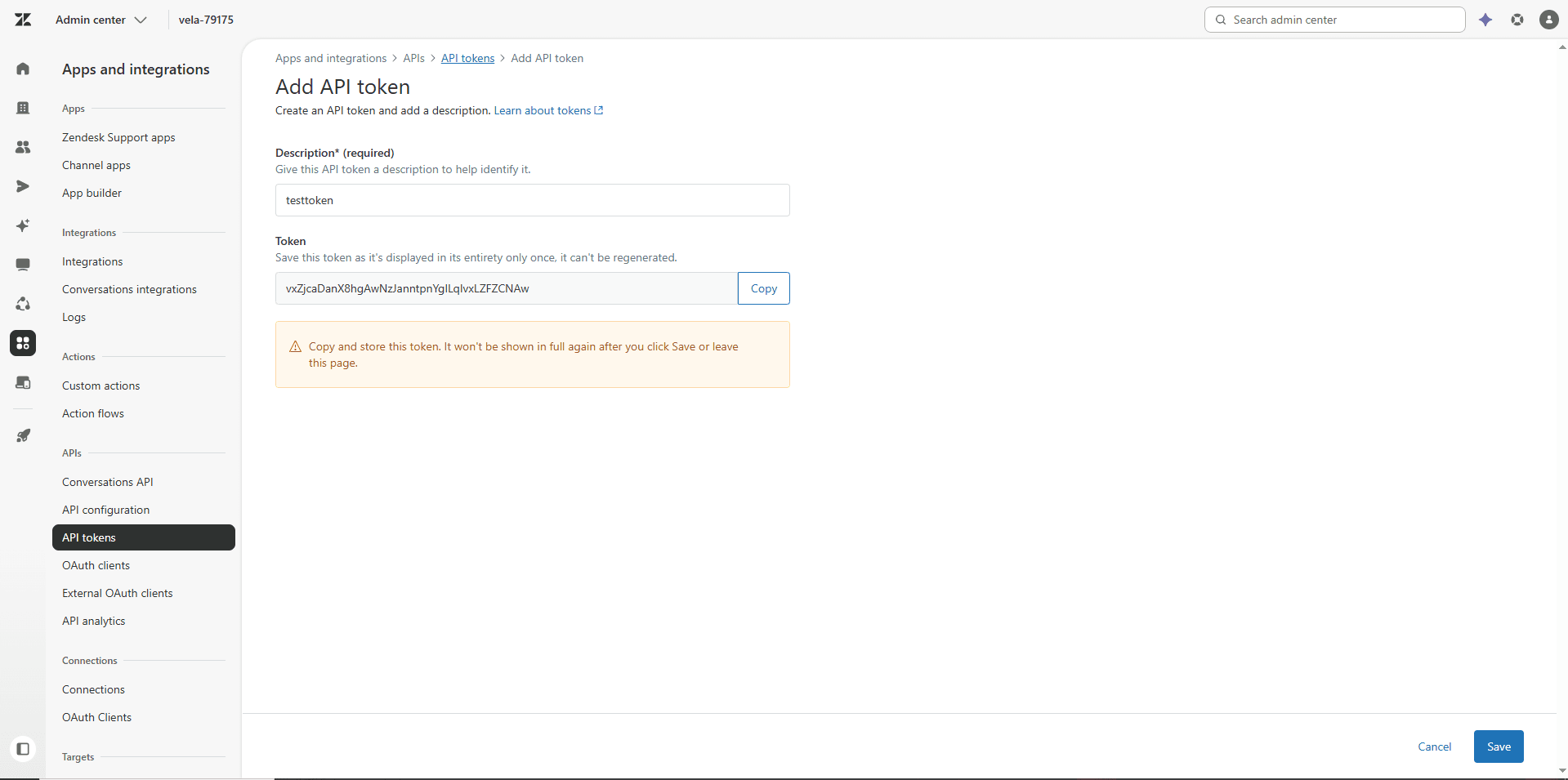
발급할 API 토큰의 간략한 설명 문구를 적고 저장을 클릭한 후, 나타나는 토큰 문자열 값을 복사하여 Vela의 Zendesk 연동 설정창에 붙여넣습니다.
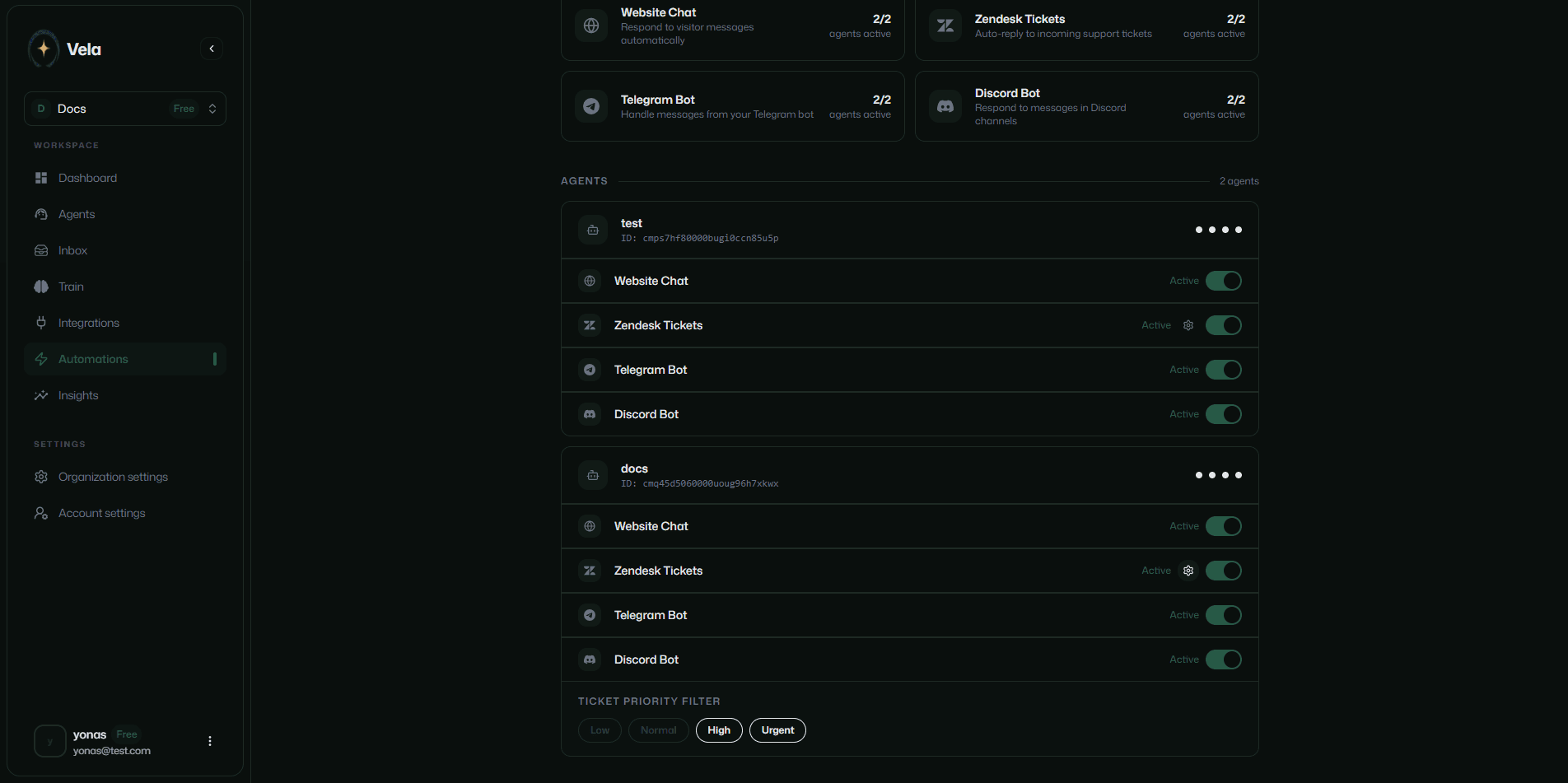
티켓 자동화 우선순위 설정
Vela 에이전트가 Zendesk에 무사히 연동되어, 설정된 티켓 우선순위에 맞추어 티켓을 자동으로 해결합니다. 기본 설정으로 모든 우선순위(낮음, 보통, 높음, 긴급)가 활성화되어 있습니다. 인공지능이 특정 우선순위 티켓만 담당하여 처리하게 하려면 설정 창에서 해당 우선순위들만 선택해 지정하세요.