vela Web Widget setup guide
Add vela's support widget to any website. Configure appearance, content, and embed options from the dashboard.
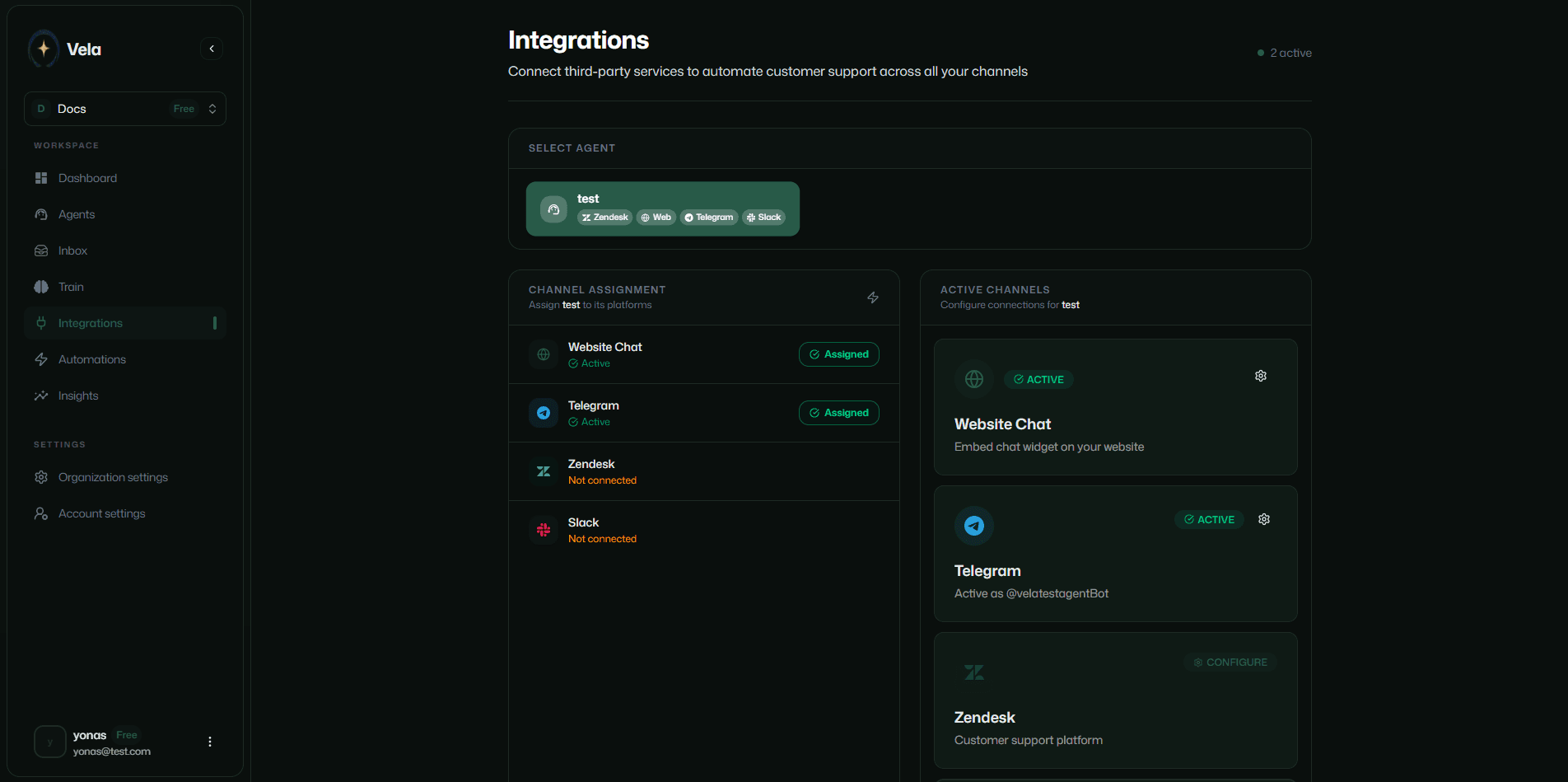
Click the Integrations tab in the sidebar and click Configure Web Widget.
General
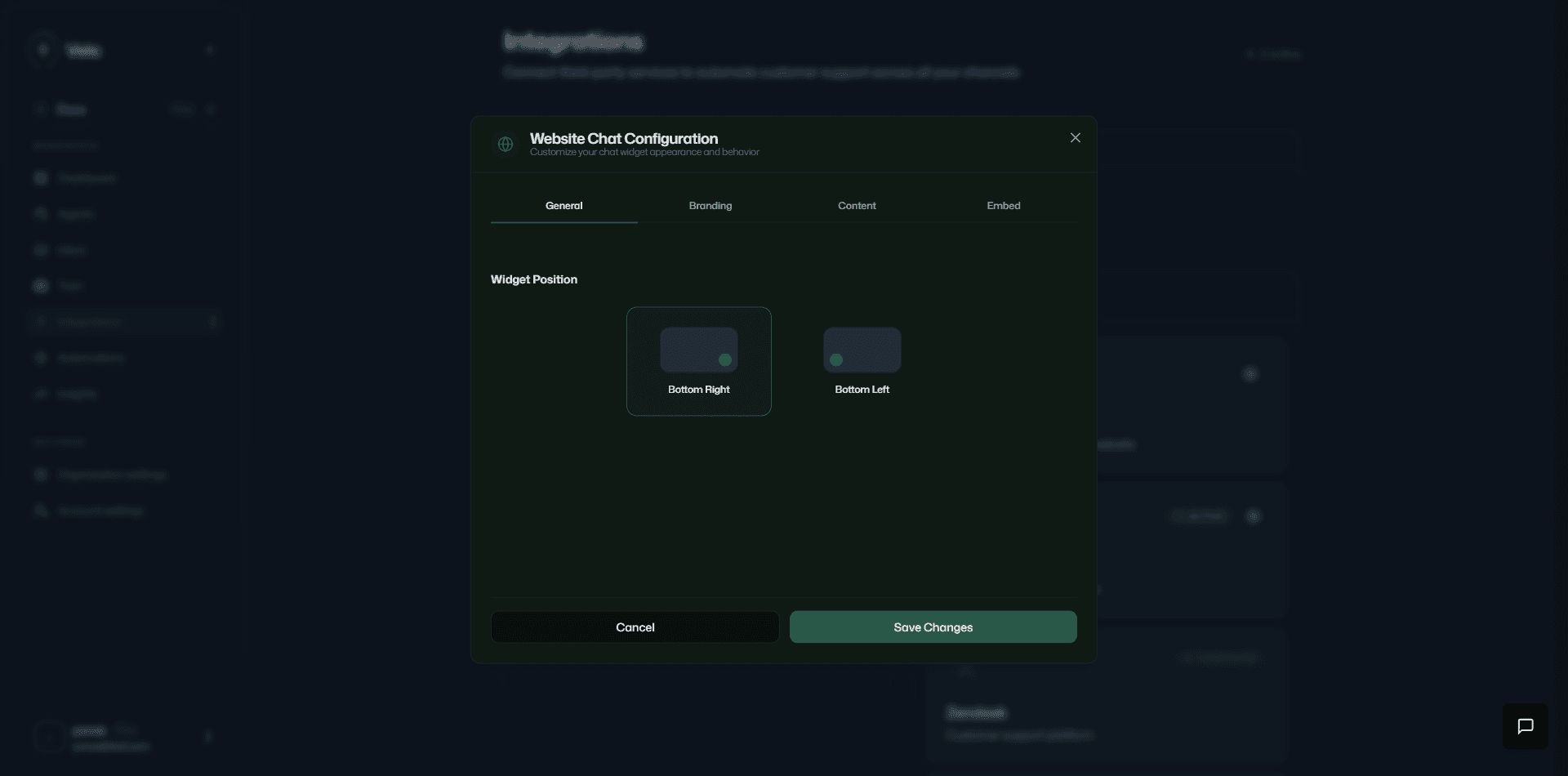
Select the widget position on your website. Place it on the bottom left or bottom right.
Branding
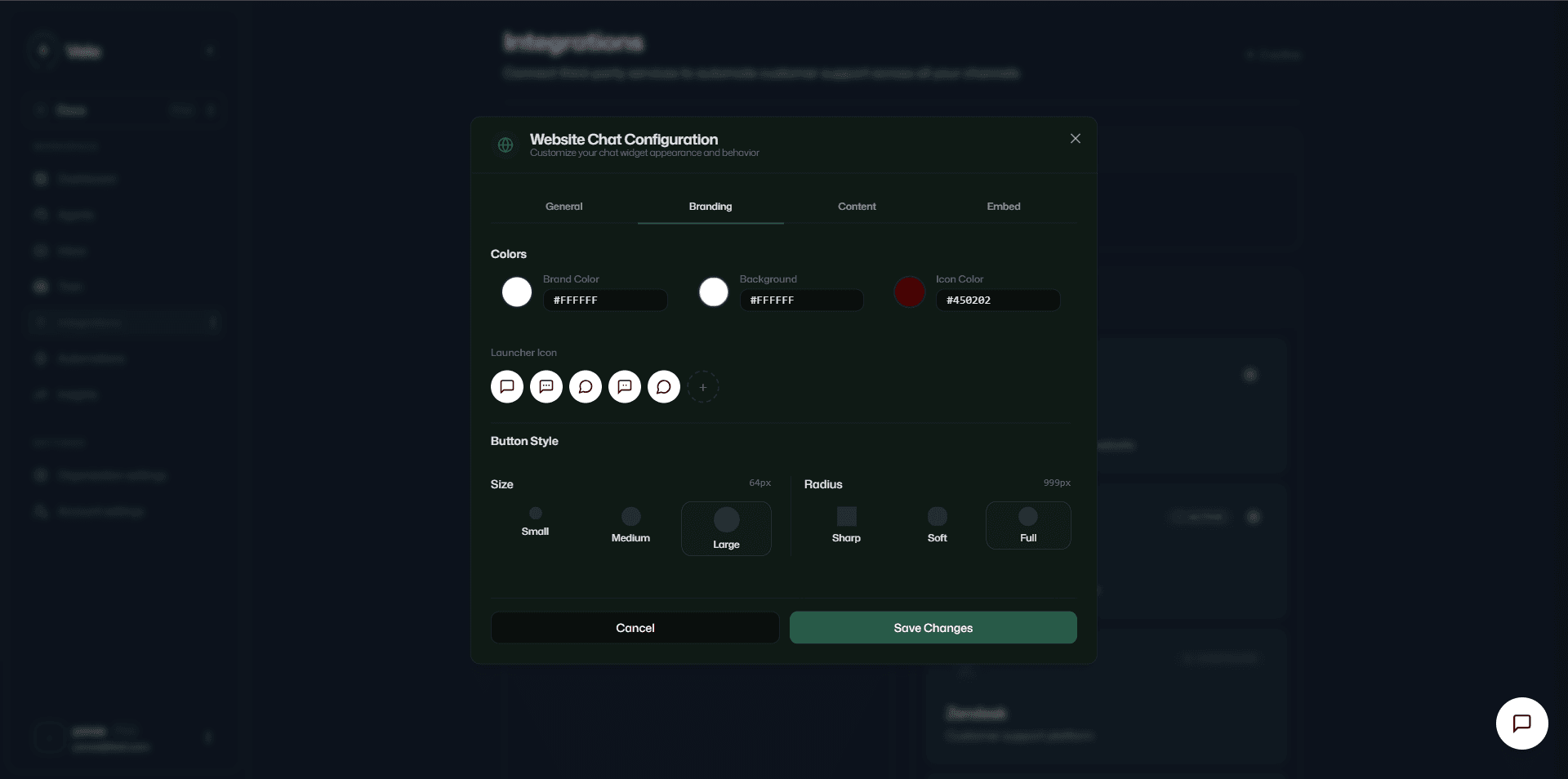
Customize the widget appearance and branding to match your website: background color, icon color, launcher icon, button size, and radius.
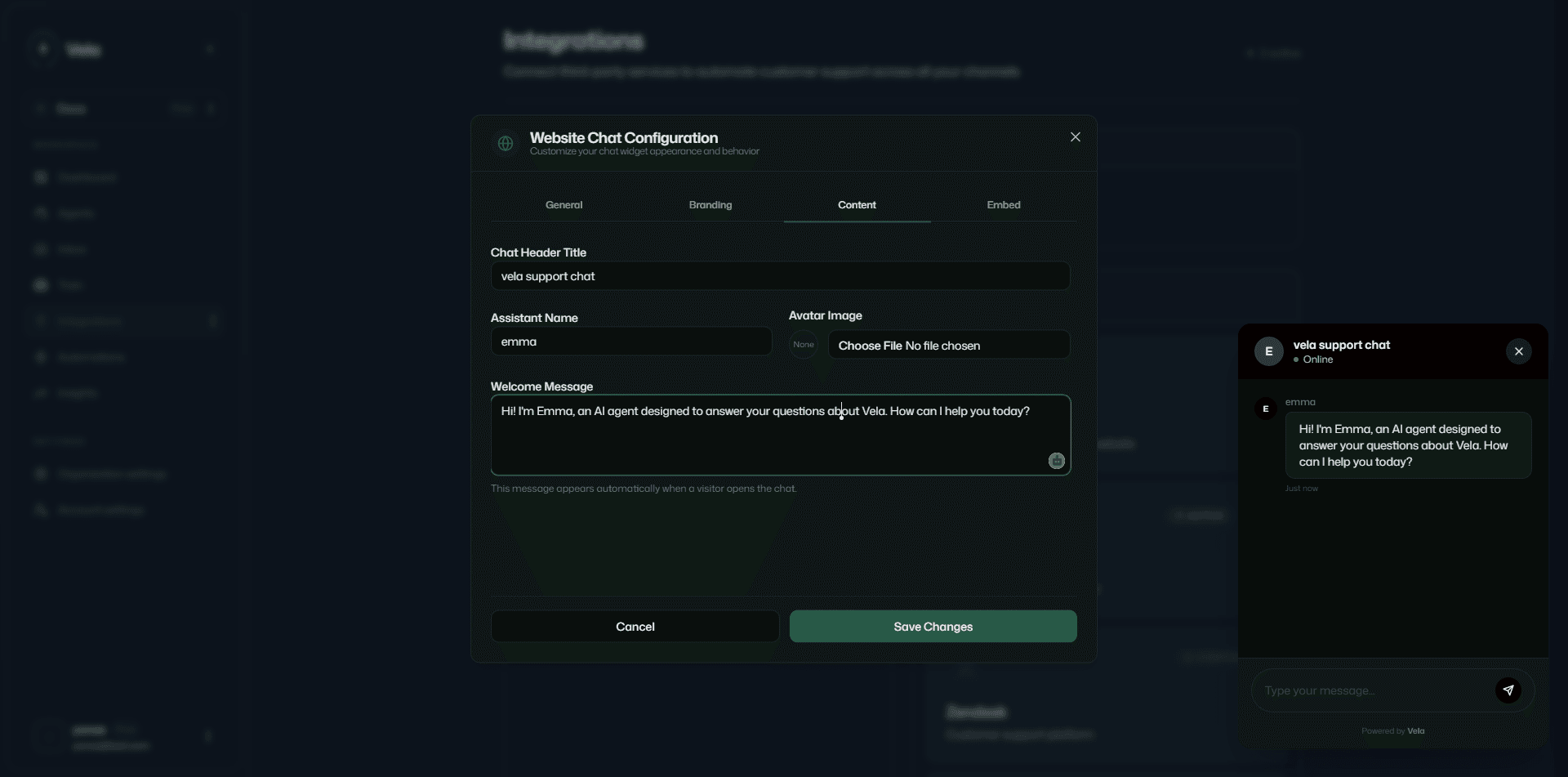
Content
Customize the widget content: welcome message, assistant name, and avatar. Preview changes in real time to see how the widget looks on your website.
Embed
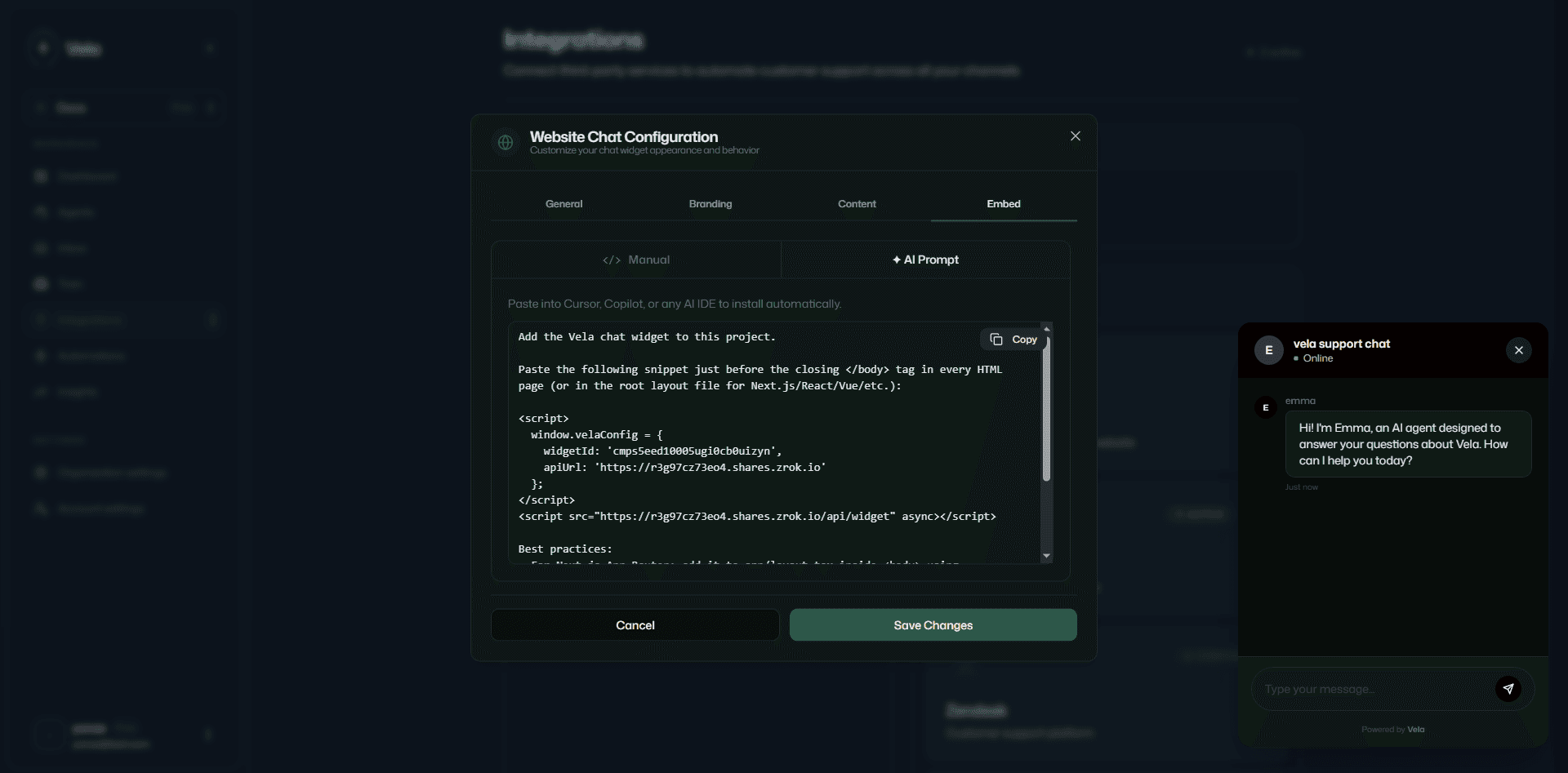
Copy the widget script tag and paste it into your website HTML before the closing </body> tag.
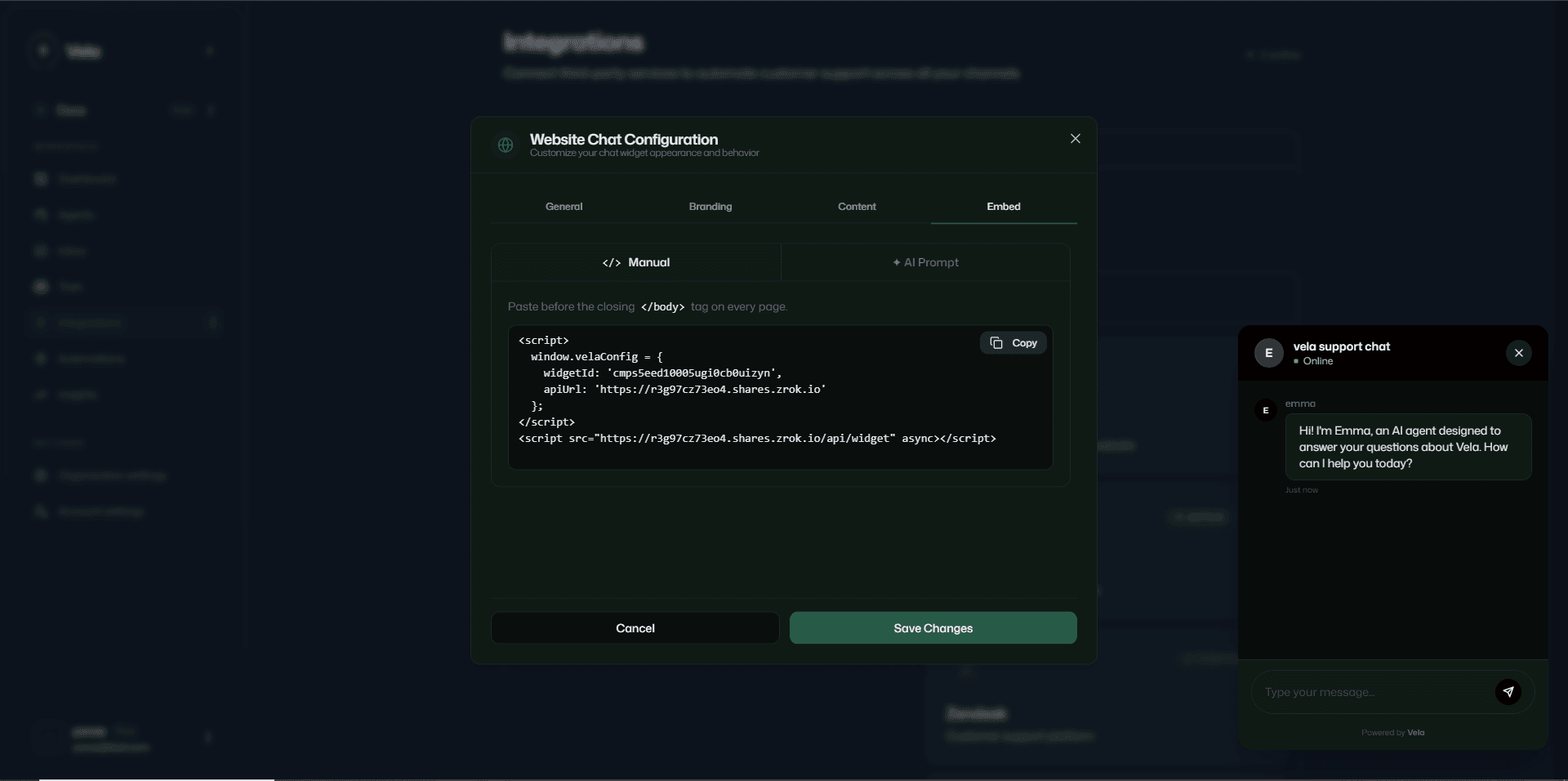
If you use AI coding tools like Claude, Cursor, or other AI assistants, copy the AI prompt and the assistant will embed the widget on your site.