
Discord
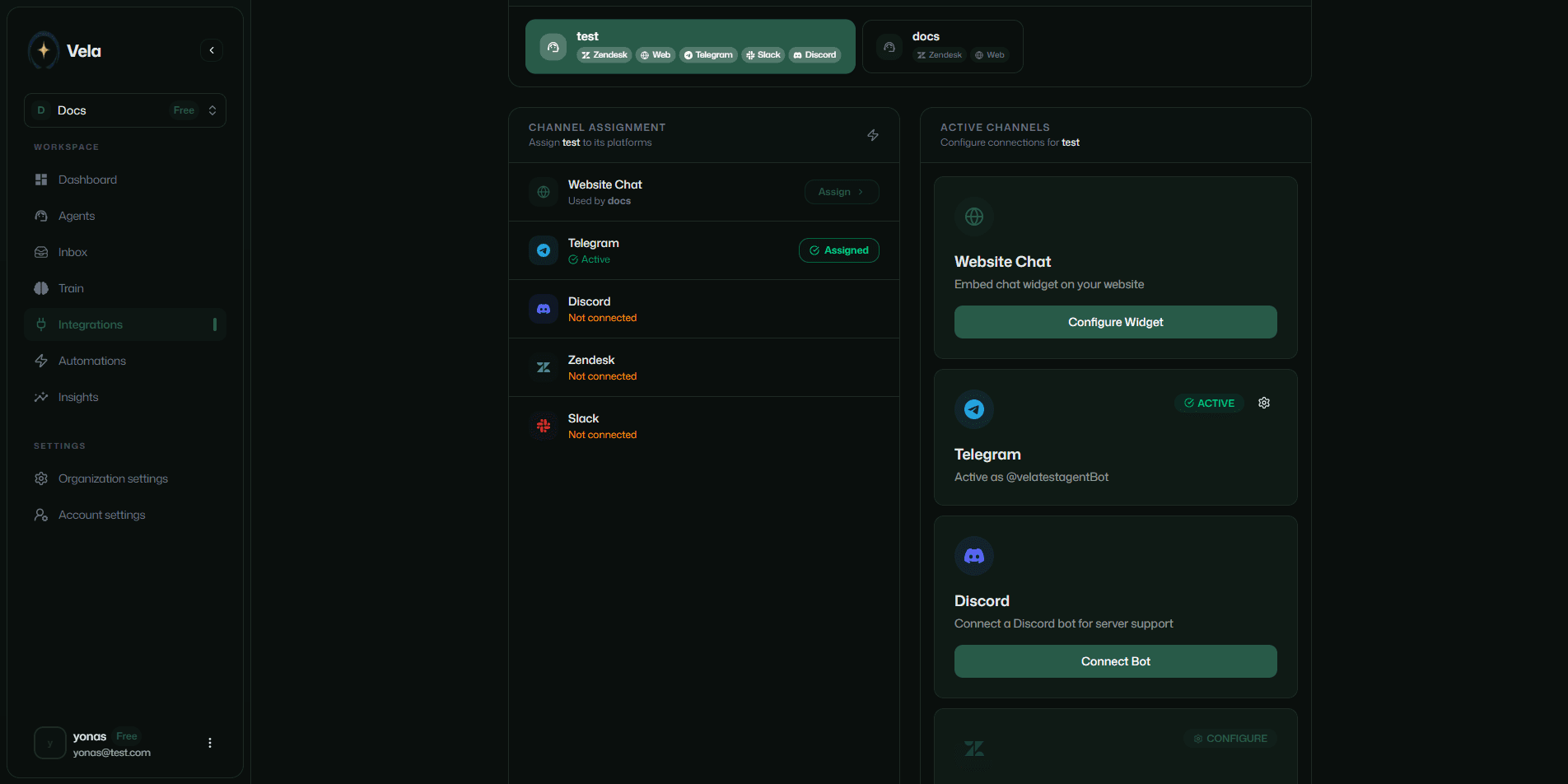
Connect Vela to your Discord server. Your AI agent answers member questions in /support and routes complex issues to your team.
Click the Connect Bot button under the Integrations tab in the sidebar.
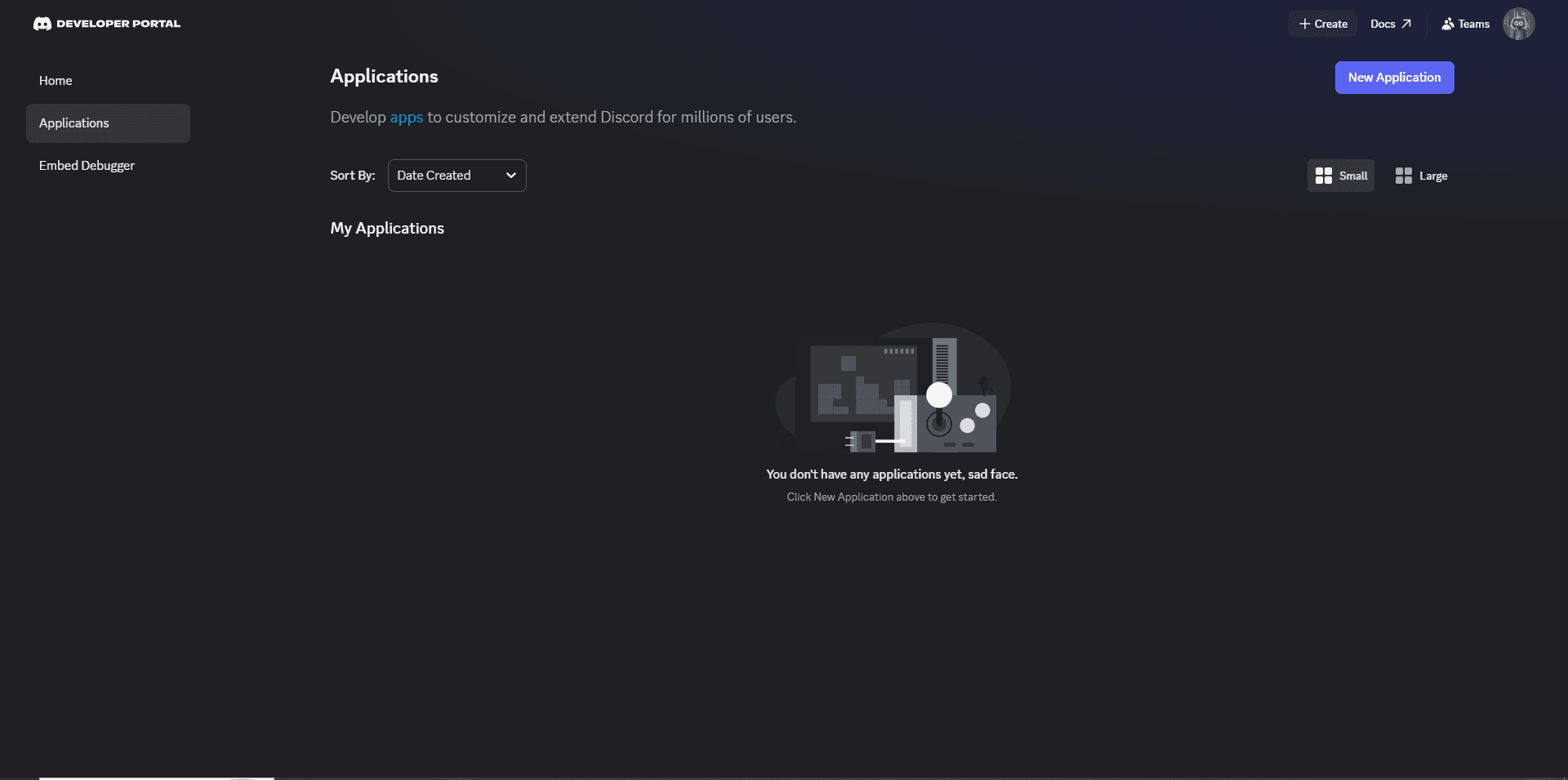
Create a Discord application
Go to the Discord Developer Portal and create a new application. Give it a name and accept Discord's terms of service.
Customize the bot's appearance (app icon) and description in the developer portal.
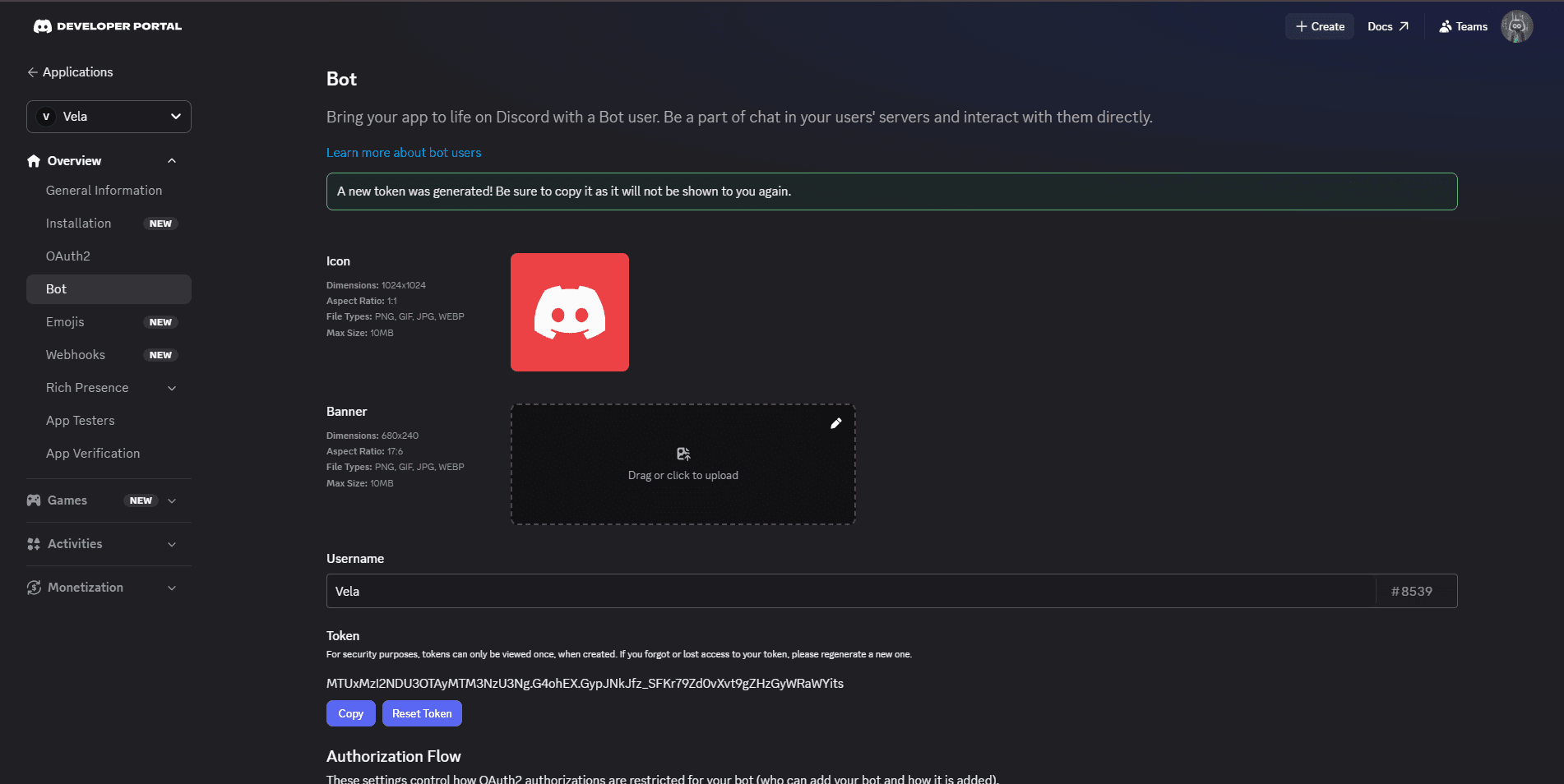
Copy the bot token
Click the Bot tab and click Reset Token to copy the new token.
Customize the bot icon and banner from this page.
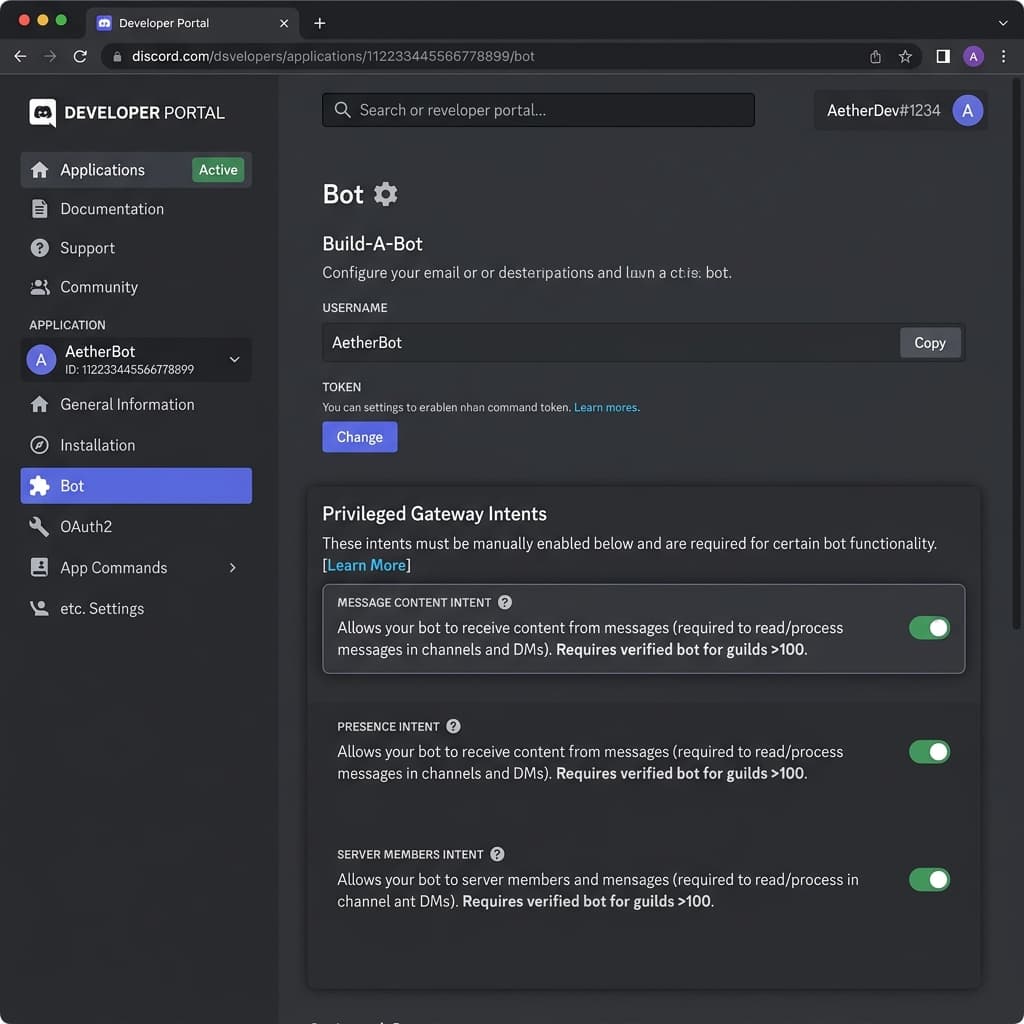
Enable Privileged Gateway Intents
To fetch server history, analyze conversations for AI review, and process direct messages (DMs) or mentions, the bot requires privileged intents.
In the Bot tab:
- Scroll down to the Privileged Gateway Intents section.
- Toggle on Presence Intent, Server Members Intent, and Message Content Intent.
- Click Save Changes.
Set permissions
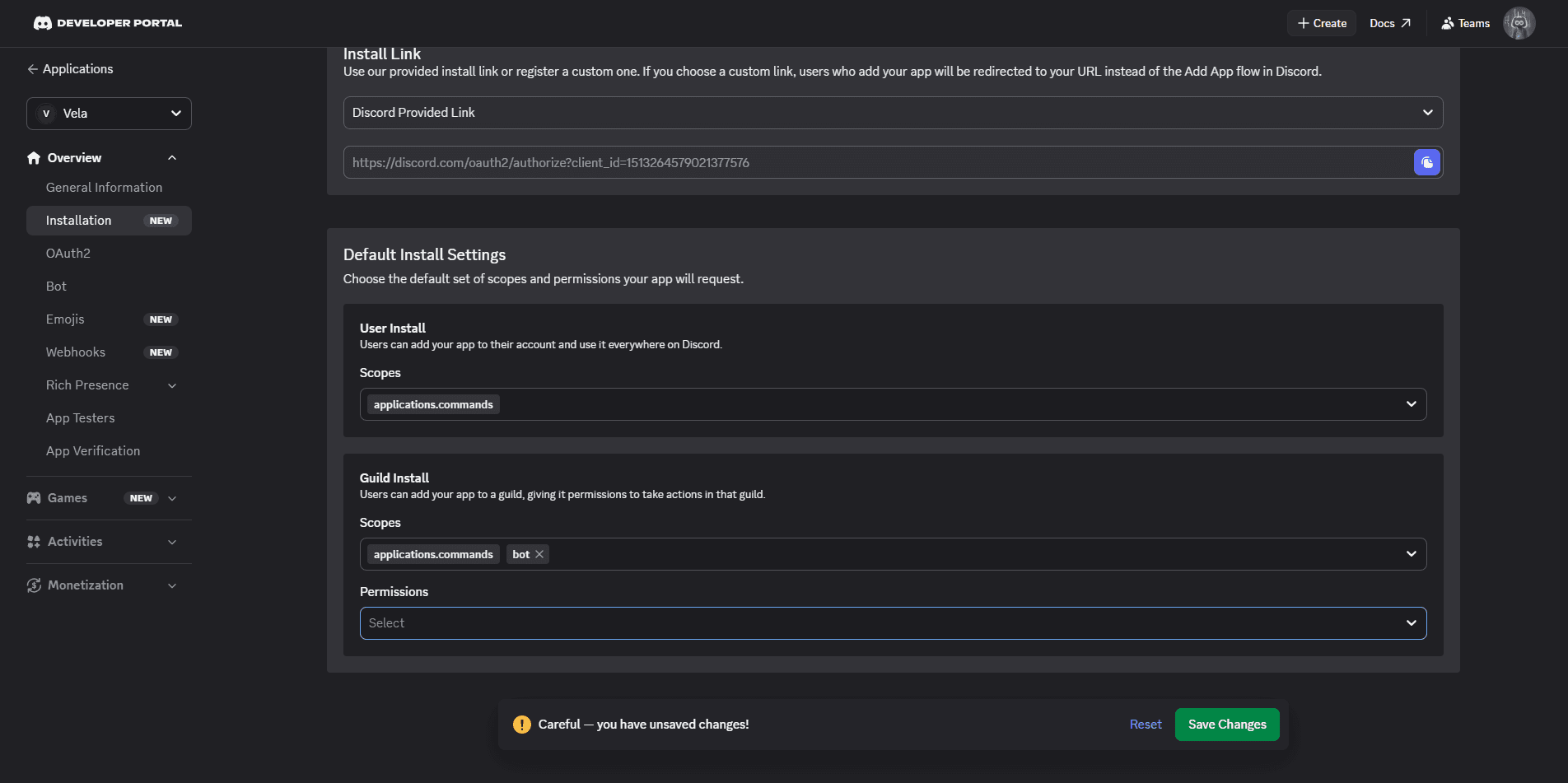
Click the Installation tab. Under Default Install Settings > Guild Install, add Bot and application.commands as scopes. Click Save Changes.
Connect in Vela
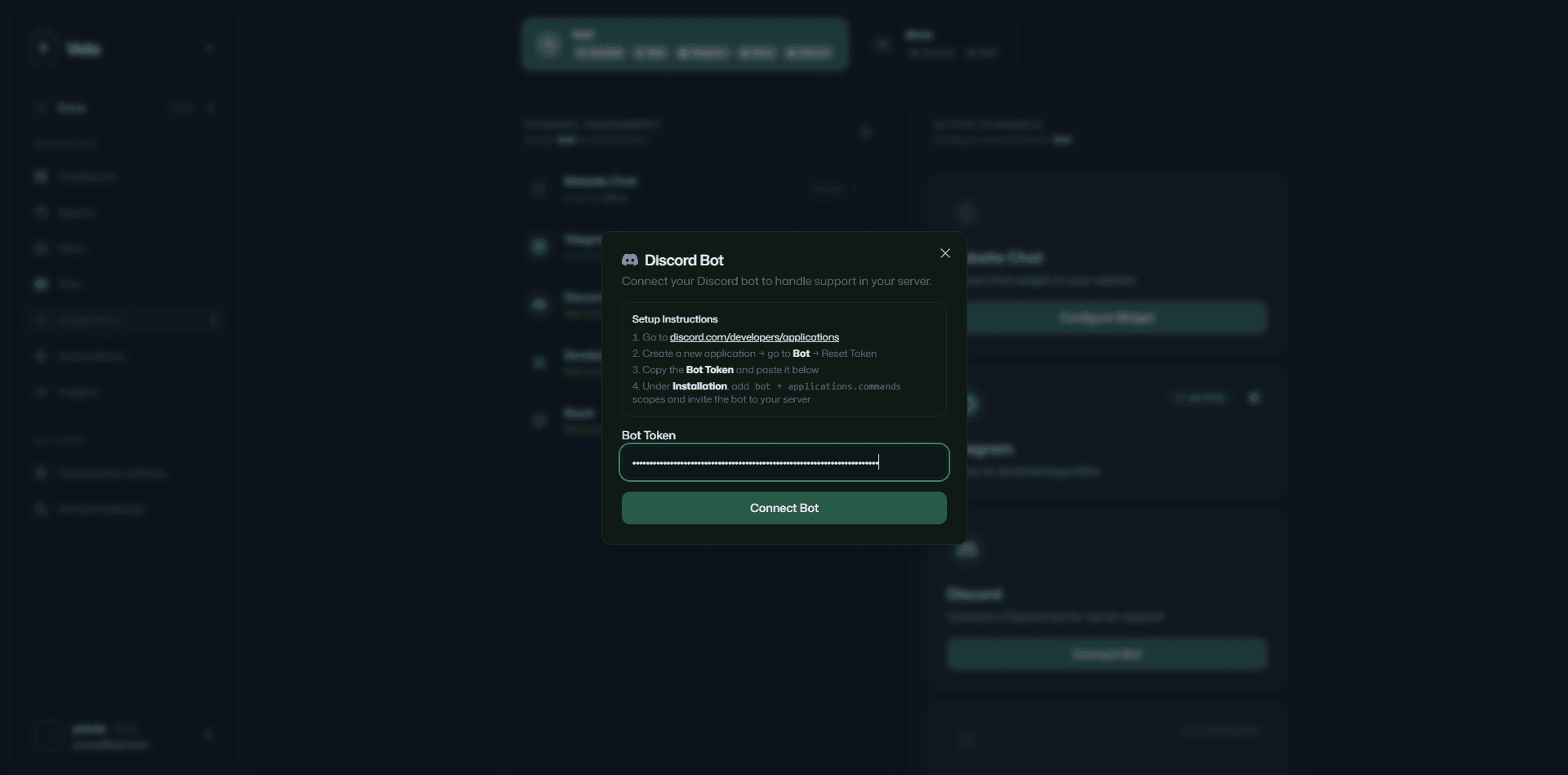
Paste the bot token into the Vela Discord setup dialog and click Connect.
Invite the bot to your server
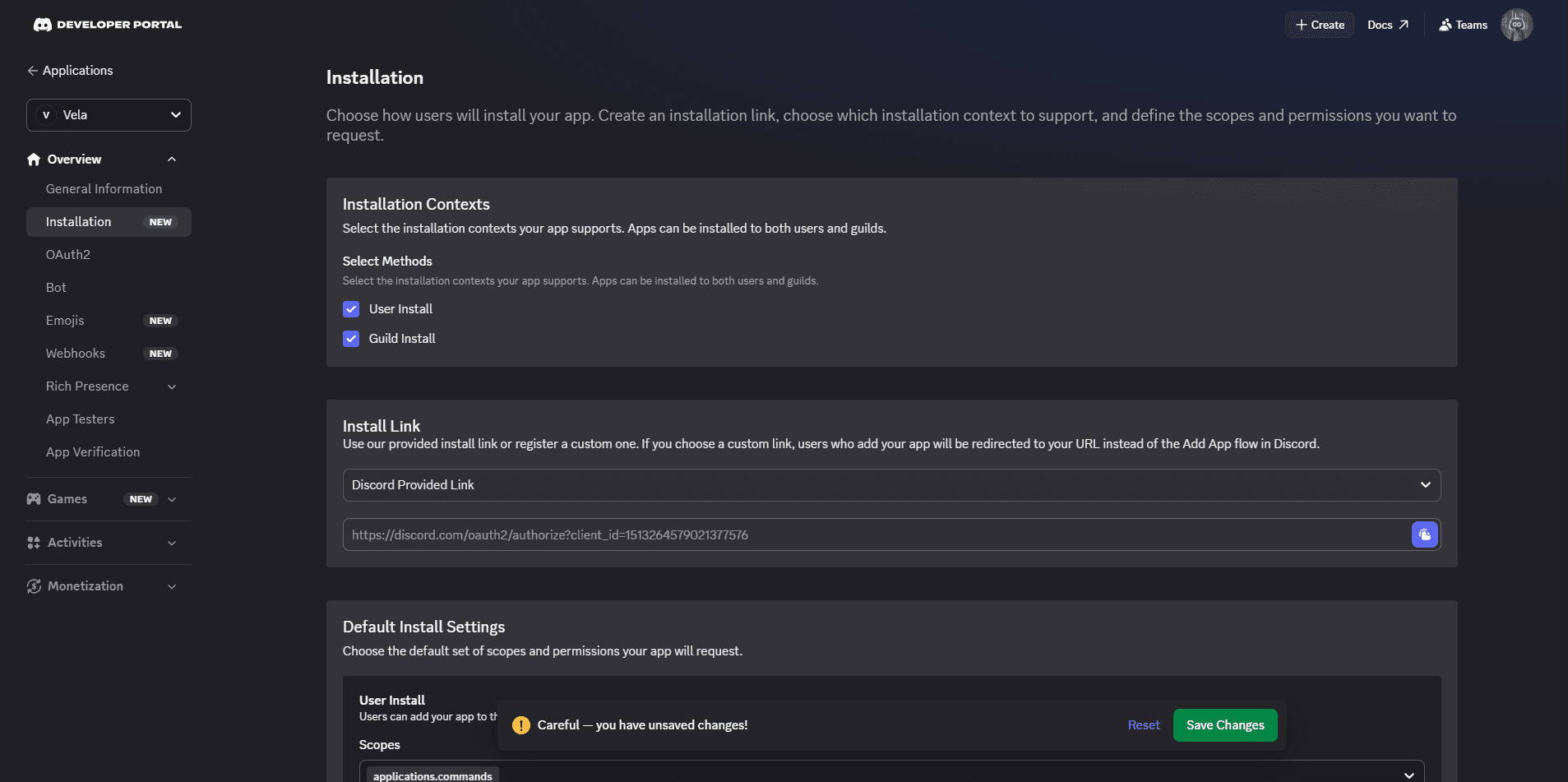
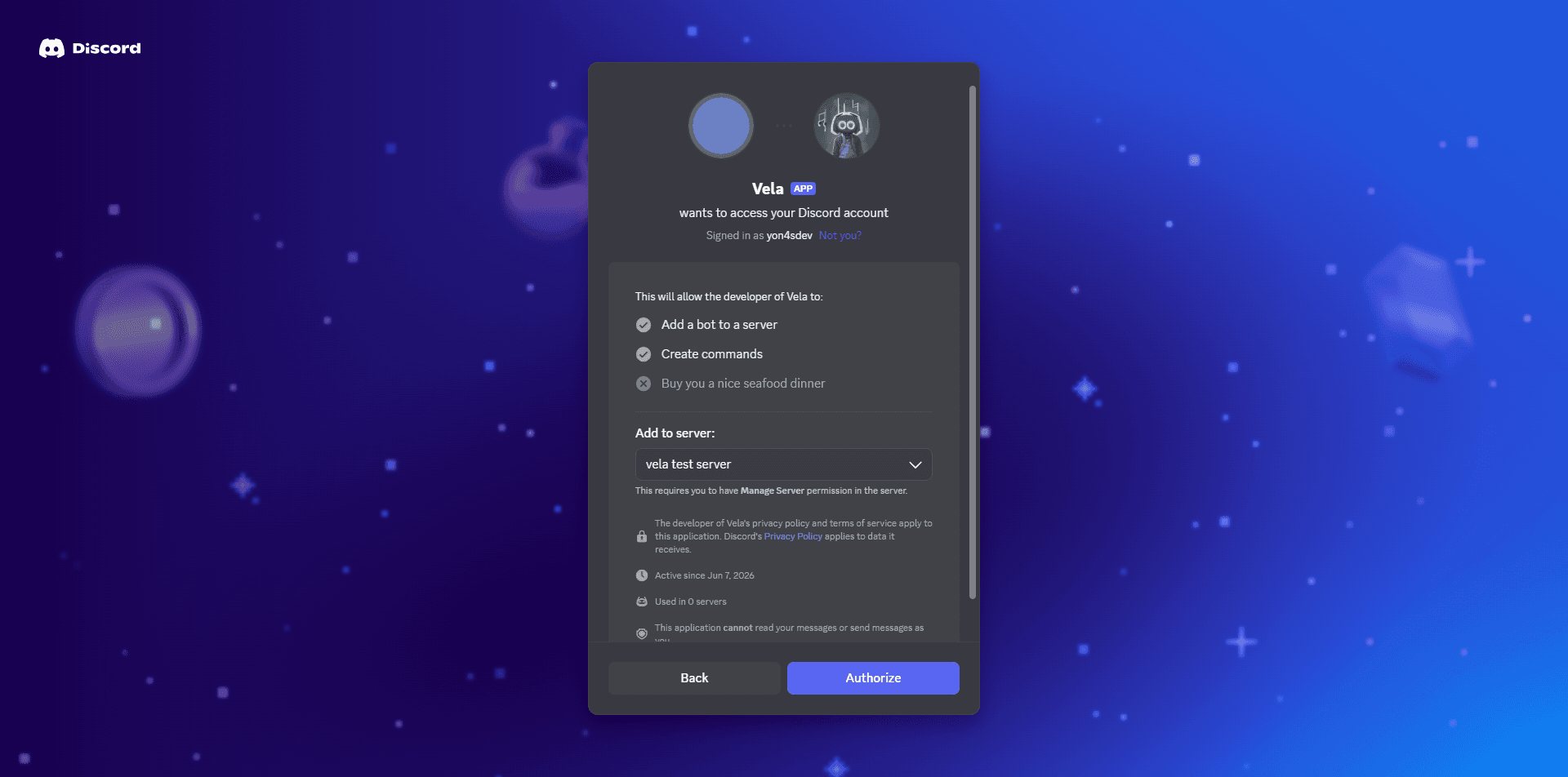
Copy the Install Link from the Installation tab and paste it into a new browser tab. Click Add to Server, select your server, and click Authorize.
Your bot is ready in your server. Members ask questions at /support and the bot responds. Questions that need human attention route to your team in the inbox.